# Change a user's email address
Update the email address on a DraftPilot account from the Your profile page, without deleting the user or creating a new one.
When someone's email address changes, for example after a rebrand or a move to a new company domain, you don't need to delete their account and invite them again. They can update the address on their own profile, and they keep their playbooks, workspaces and history.
Administrators can't change another user's email address from User management, so ask the user to follow these steps. If your organisation signs in with Microsoft or single sign-on (SSO), read [Microsoft sign-in, SSO and SCIM](#microsoft-sign-in-sso-and-scim) first.
## Change your email address in the Word add-in
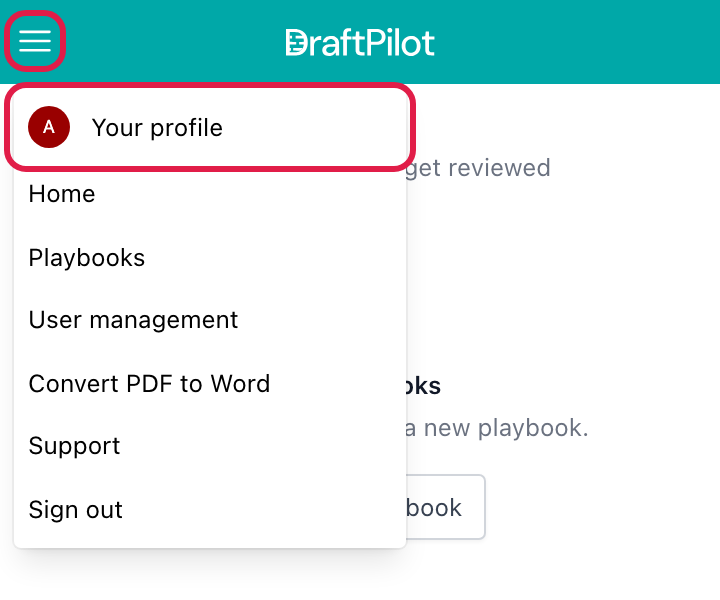
1. Open DraftPilot in Word and click the menu icon (three horizontal lines) at the top left of the taskpane.
2. Click **Your profile** at the top of the menu.
[](/images/knowledge-base/change-your-email-address/01.png)
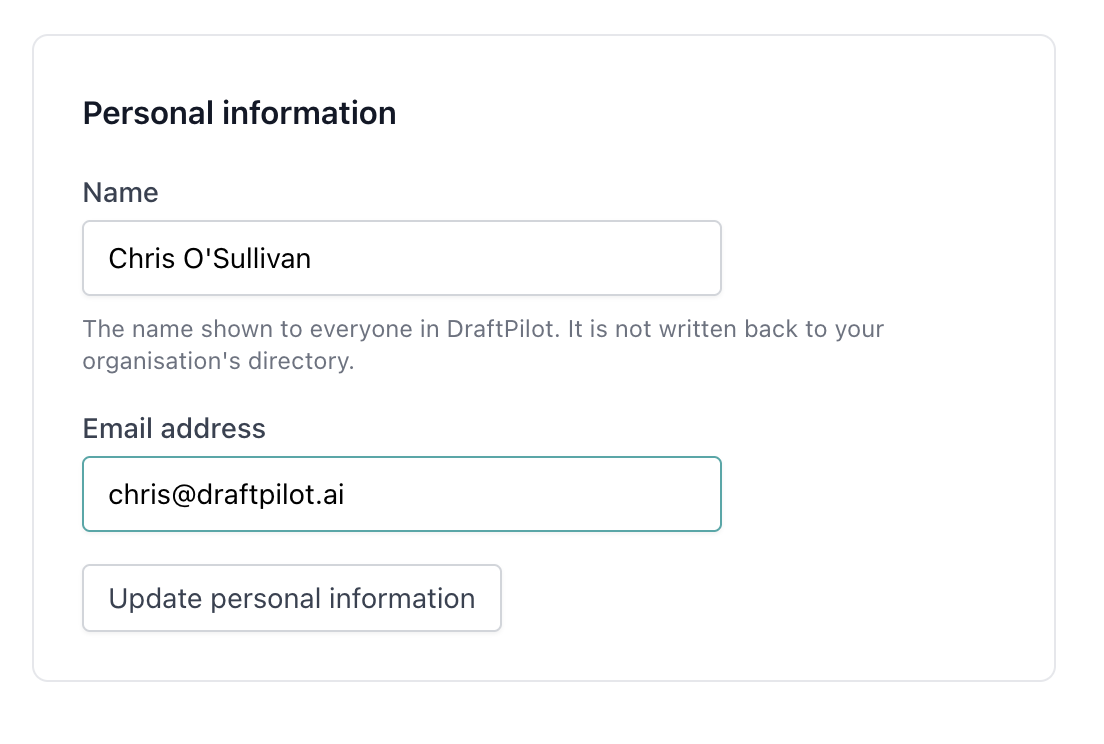
3. In the **Personal information** section, replace the address in the **Email address** field with the new one.
4. Click **Update personal information**.
[](/images/knowledge-base/change-your-email-address/03.png)
When **Personal information saved** appears next to the button, the change is done. It takes effect straight away and no confirmation email is sent, so check the new address for typos before you save.
From now on, sign in with the new email address. Your password stays the same, and you stay signed in on the devices you're already using.
## Change your email address in the web app
1. Sign in at [https://app.draftpilot.ai](https://app.draftpilot.ai).
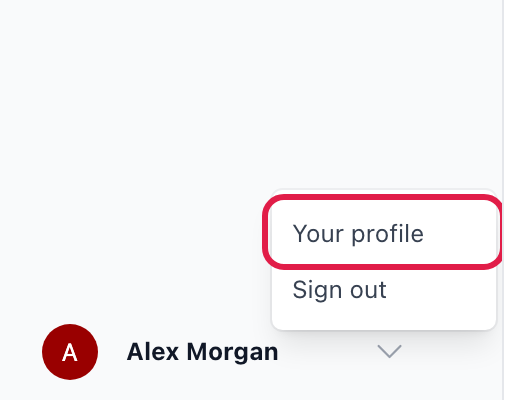
2. Click your name at the bottom of the left sidebar, then click **Your profile**.
[](/images/knowledge-base/change-your-email-address/02.png)
3. Follow steps 3 and 4 above to enter the new address and click **Update personal information**.
## Microsoft sign-in, SSO and SCIM
DraftPilot finds your account by matching the email address that Microsoft or your SSO provider (such as Okta) sends when you sign in. If you change the address in DraftPilot to one your identity provider doesn't know about, you won't be able to sign in.
- Ask your IT team to update the address in your identity provider (for example Microsoft Entra ID or Okta) first, then change it in DraftPilot to match.
- If your organisation uses [SCIM provisioning](/knowledge-base/how-to-set-up-scim-provisioning), the identity provider updates DraftPilot for you. Once IT has changed the address there, you usually don't need to do anything, and a change you make by hand may be overwritten at the next sync.
## If the change doesn't save
If you see **Failed to update personal information. Please try again.**, the new address may already belong to another DraftPilot account, for example if the person was invited again under their new address. [Contact our support team](/knowledge-base/how-to-contact-support) and we'll help you sort it out.
## Related guides
- [Add and manage users and workspaces](/knowledge-base/how-to-add-remove-users-and-manage-workspaces)
- [Signing in to DraftPilot](/knowledge-base/signing-in-to-draftpilot)
- [Set up SAML single sign-on](/knowledge-base/saml-and-okta-single-sign-on)