
Apply all suggestions in a playbook review
Last updated: November 11, 2026
When a playbook review finishes, you don’t have to apply each suggestion one at a time. Apply all suggestions inserts DraftPilot’s suggested redlines, external justification comments and internal escalations into your document in one click. You then review them in Word like any other tracked changes.
If you already use Apply All in AI Chat, this brings the same one-click step to playbook reviews.
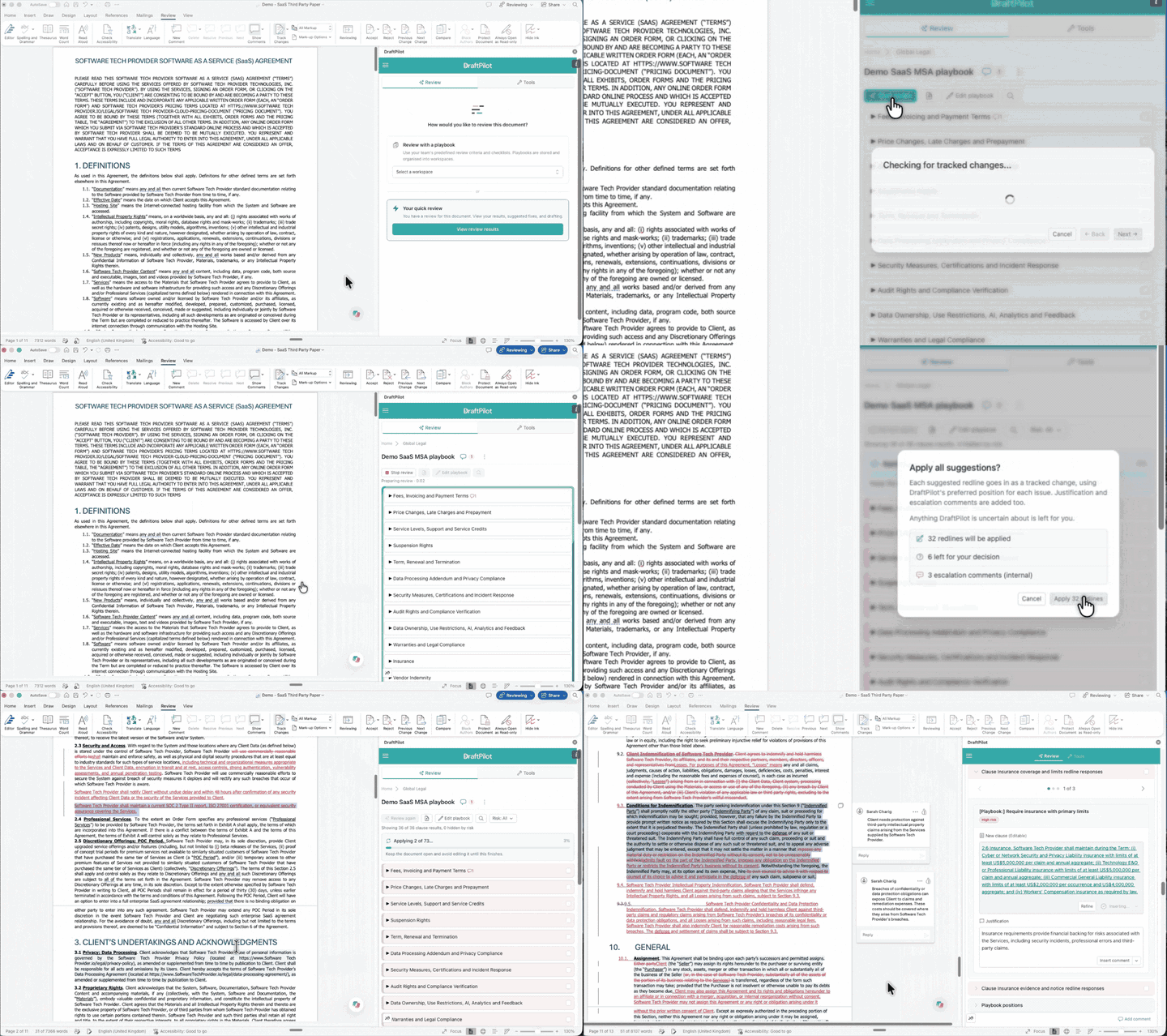
Apply all suggestions
- Open the contract in Word and open DraftPilot.
- Run a review with a playbook and choose Redlines as the review output. See Review third-party paper against a playbook or Review markup on your own template for the full steps.
- When the review has finished, click Apply all suggestions at the top of the results. The card shows how many redlines are ready.
- Check the summary in the confirmation window. It shows how many redlines will be applied, how many are left for your decision and how many internal escalation comments will be added.
- Click Apply n redlines to start. The button shows the number of redlines.
Keep the document open and avoid editing it until DraftPilot has finished. If Track Changes is off, DraftPilot turns it on first, so every redline goes in as a tracked change.
The button becomes available automatically once DraftPilot has finished preparing the changes. If you see Waiting for edits to be consolidated, DraftPilot is still combining overlapping edits into one redline per clause. Wait a moment and the button will be ready.
Which positions DraftPilot inserts
DraftPilot inserts the strongest playbook position still available for each issue:
- First review: your preferred positions.
- Later negotiation rounds: the fallbacks that are still in play after earlier rounds.
Each redline comes with its external justification comment. Where the playbook calls for an escalation, DraftPilot also adds an internal escalation comment telling the approver what to review.
Stay in control of every change
If DraftPilot is unsure about an insertion, it won’t guess. It leaves that suggestion for you to decide, for example when:
- it can’t confirm where a new clause should go
- playbook positions conflict on the clause, or another suggestion edits the same clause
- the only options are AI suggestions, or there are several options and none is marked as preferred
- the clause has moved, can’t be found in the document, or sits in a text box
When it finishes, Apply all finished shows what was applied, what needs your decision and anything that couldn’t be applied. Click Go to next to an item to open its card, then edit and apply it yourself.
Everything DraftPilot applied is an ordinary tracked change, so you can still edit or reject any individual change in Word as you work through the review. If a comment couldn’t be placed, insert it from its card in DraftPilot.