
Word running slowly on large documents?
Last updated: 10 October 2026
Very large drafts can make Word slow to respond, especially once they carry hundreds of tracked changes and comments. You might notice typing lagging behind your keystrokes, or Word pausing every time you stop typing.
Nothing is broken and your document doesn’t need repairing. Word simply has a lot to draw, and while a review is open DraftPilot adds to that work by keeping its highlights up to date as you move around the document.
The steps below reduce that load. Try them in order and stop once Word feels responsive again.
1. Hide DraftPilot’s highlights
While a review is open, DraftPilot refreshes its highlights in the document each time you pause typing. On a heavily redlined draft that refresh is a lot of work for Word.
To turn highlights off, hover over the DraftPilot logo in the bottom left corner of the panel and choose Hide highlights:
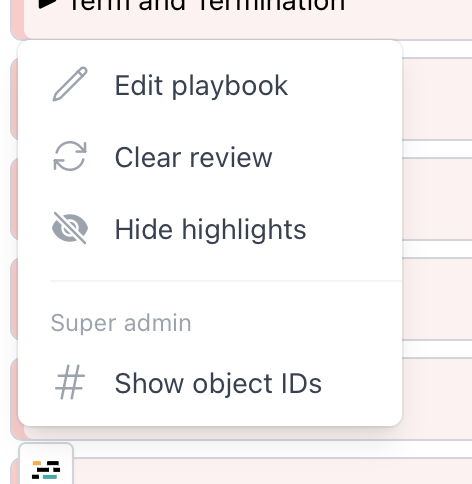
All the issues stay in the DraftPilot panel and you can still work through them there. You just won’t see the highlights in the document. You can turn them back on from the same menu at any time.
2. Switch Word to Simple Markup
With All Markup turned on, Word draws every insertion, deletion and comment balloon on screen. On a document with a lot of tracked changes this alone can slow Word down, with or without DraftPilot.
-
In Word, open the Review tab.
-
In the Tracking group, find Display for Review.
-
Change it from All Markup to Simple Markup.
Your tracked changes and comments are all still there. Word just shows a red line in the margin where something has changed, so it has far less to draw. Switch back to All Markup whenever you want to see the changes in full.
3. Review a few playbook entries at a time
You don’t have to run every playbook entry in one go. When you start a review, open Customize review (optional) and tick only the entries you want to check now:
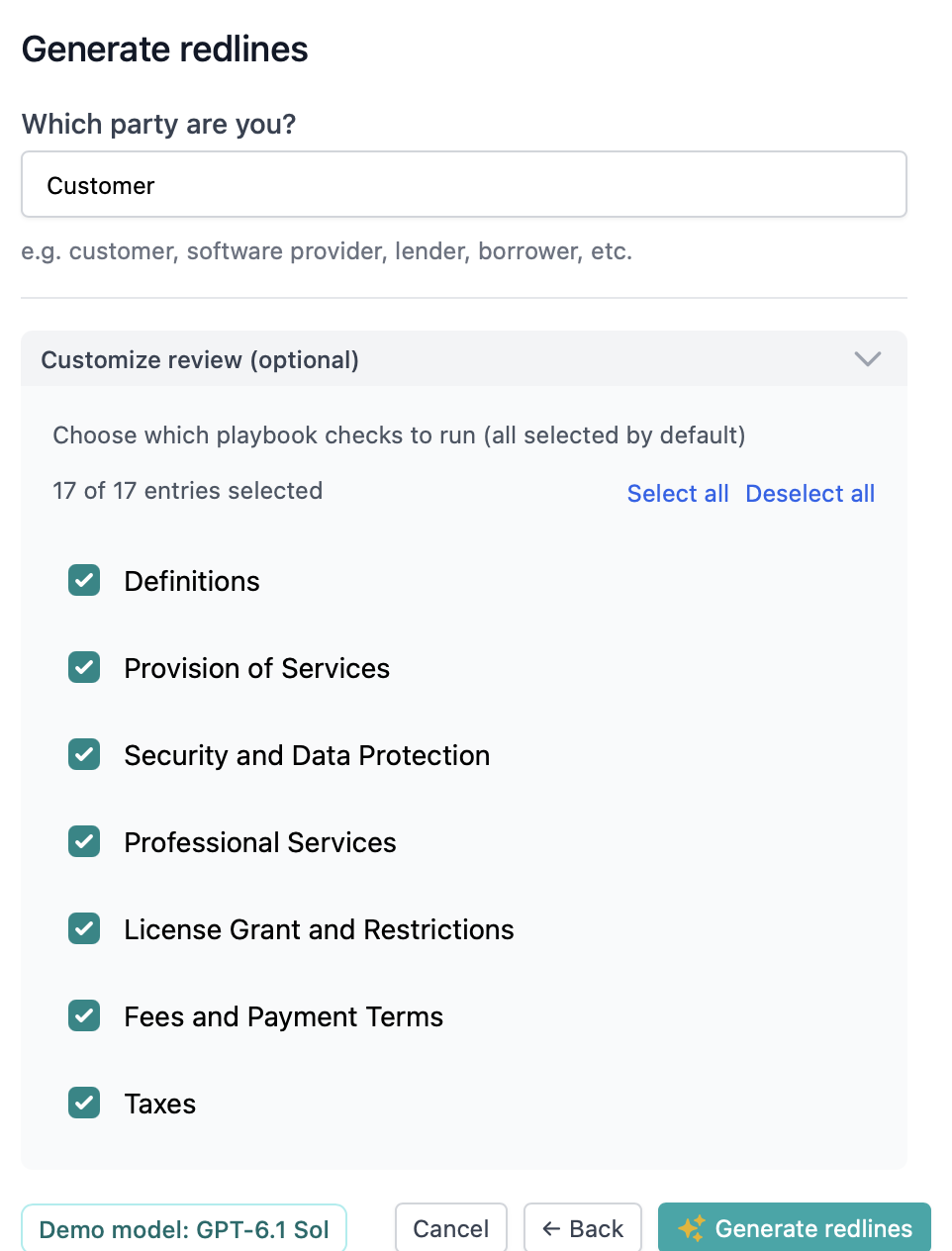
Use Deselect all to clear the list, then pick the entries for the first batch. Fewer entries means fewer open issues, so there is less for DraftPilot to highlight and Word stays more responsive. Once you’ve worked through that batch, run the next one.
Still slow?
If Word is still slow with highlights hidden and Simple Markup on, the slowdown is most likely Word itself rather than DraftPilot. Closing other large documents, saving and reopening the file, or splitting a very long draft into sections can help.
Either way, contact our support team and let us know roughly how many tracked changes and comments the document has. That helps us reproduce the problem and make DraftPilot lighter on large drafts.